-------------------------------------------------
Showing posts with label eclipse. Show all posts
Showing posts with label eclipse. Show all posts
Wednesday, March 28, 2012


Monday, December 26, 2011
Import maven project into eclipse with sources and javadocs
mvn eclipse:clean eclipse:eclipse -DdownloadSources -DdownloadJavadocsMonday, October 10, 2011

Friday, September 30, 2011
Thursday, July 28, 2011
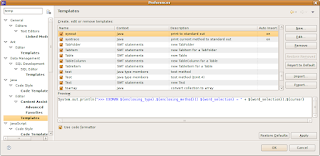
Eclipse -> Code Templates
Setting templates:
Java -> Editor -> Templates
1: "Edit..." for sysout:
2: "Edit..." for systrace:
Java -> Editor -> Templates
1: "Edit..." for sysout:
System.out.println(">>> ${user}: ${enclosing_type}.${enclosing_method} ${word_selection} = " + ${word_selection});${cursor}
2: "Edit..." for systrace:
System.out.println(">>> ${user}: ${enclosing_type}.${enclosing_method}()");
Tuesday, January 18, 2011


Wednesday, August 18, 2010
Eclipse import with a different project name
mvn eclipse:eclipse -D eclipse.projectNameTemplate=[artifactId]-[version]
Friday, April 30, 2010
How to view which version of eclipse i have
Look into the file eclipse/readme/readme_eclipse.html
I have:
====================
Eclipse Project Release Notes
Release 3.5.2
Last revised February 10, 2010
====================
Monday, April 12, 2010
Eclipse: maven test debug
Project:
xcmis-restatom
Main class:
org.codehaus.classworlds.Launcher

Program arguments:
-DforkMode=never
clean
install -Dtest=org.xcmis.restatom.RepositoryCapabilityTest
VM arguments:
-Dclassworlds.conf=${M2_HOME}/bin/m2.conf
-Dmaven.home=${M2_HOME}

To add the library classworlds-1.1-alpha-2.jar
/home/alexey/java/maven2/repository/classworlds/classworlds/1.1-alpha-2/classworlds-1.1-alpha-2.jar

Add sources.

Friday, April 9, 2010


Ubuntu Пропали иконки в меню
Эклипс: Нет иконок в меню. Нет картинок в меню.
Eclipse: No icons in menu. No images in the menu.
https://bugs.eclipse.org/bugs/show_bug.cgi?id=293720
Eclipse: No icons in menu. No images in the menu.
https://bugs.eclipse.org/bugs/show_bug.cgi?id=293720
gconftool-2 --type boolean --set /desktop/gnome/interface/menus_have_icons true
Eclipse: Subversive plugin and Share project use
Update site:
Update Site is a part of Galileo Update Site. Look at "Help > Install New Software..." select Galileo - http://download.eclipse.org/releases/galileo > Collaboration Tools


Select project and execute Team > Share Project.


Now you can connect project to repository using Subversive. Select project and execute Team > Share Project. Select Subversive SVN provider in Share Project wizard and at the end you will be prompted to choose the SVN location.


Thursday, March 25, 2010


Monday, January 25, 2010
Эклипс: Подсветка переменной на которой стоит указатель
Как всключить пдсветку переменной на которой стоит указатель?
Очень просто, есть комбинация клавиш "Shift + Alt + O"
Toggle mark occurrences.

Очень просто, есть комбинация клавиш "Shift + Alt + O"
Toggle mark occurrences.

Wednesday, September 16, 2009
Eclipse Galileo 3.5
1. Install Eclipse.
Download eclipse-jee-galileo-linux-gtk.tar.gz from:
http://www.eclipse.org/downloads/download.php?file=/technology/epp/downloads/release/galileo/R/eclipse-jee-galileo-linux-gtk.tar.gz
tar -zxvf eclipse-jee-galileo-linux-gtk.tar.gz
2. Install Subversive.
2.1. Install subversion for Ubuntu https://launchpad.net/~anders-kaseorg/+archive/subversion-1.6
The list of all dependencies for Ubuntu 9.04 is here https://launchpad.net/~anders-kaseorg/+archive/subversion-1.6/+build/1200532
for install it use "
Add update site
http://download.eclipse.org/technology/subversive/0.7/update-site/
Now you can install only Subversive SVN Team Provider.
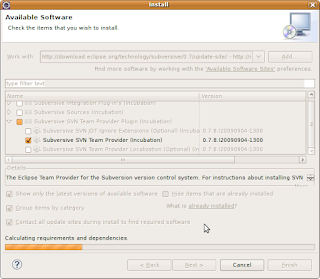
After restart eclipse go to Window -> Preferences -> Team -> SVN
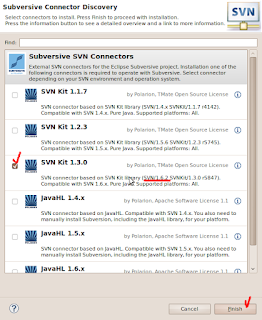
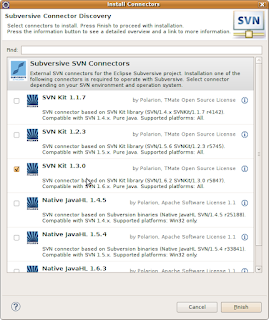
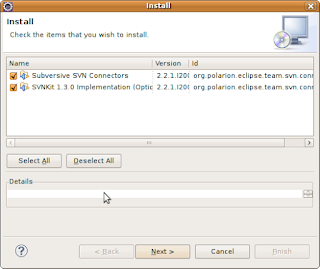
on the first call to any Subversive functionality the Connector Discovery feature will detect that there are no connectors installed and will launch a dialog which displays the SVN Connectors you need and enables download and installation:
 2.3. Use share project.
Click right-button mouse on project and select Team -> Share Project SVN, Next, Next,
Enter user/password, check Save password, Finish
3. Configure JRE, Classpath variables, Formatter and Templates
JRE
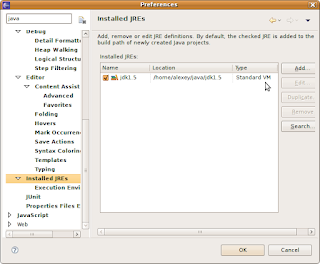
Classpath variables are configured at
Window -> Preferences -> Java -> Build Path -> Classpath variable
Click NEW to add maven repo "M2_REPO" variable.
Formatter
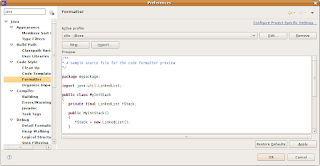
Templates
Links:
1. How to use maven for eclipse
2. How to debug tomcat with eclipse
Download eclipse-jee-galileo-linux-gtk.tar.gz from:
http://www.eclipse.org/downloads/download.php?file=/technology/epp/downloads/release/galileo/R/eclipse-jee-galileo-linux-gtk.tar.gz
tar -zxvf eclipse-jee-galileo-linux-gtk.tar.gz
2. Install Subversive.
2.1. Install subversion for Ubuntu https://launchpad.net/~anders-kaseorg/+archive/subversion-1.6
The list of all dependencies for Ubuntu 9.04 is here https://launchpad.net/~anders-kaseorg/+archive/subversion-1.6/+build/1200532
for install it use "
gksudo gdebi -i package_name.deb2.2. Install subversion for Eclipse
or
sudo dpkg -i package_name.deb
Add update site
http://download.eclipse.org/technology/subversive/0.7/update-site/
Now you can install only Subversive SVN Team Provider.

After restart eclipse go to Window -> Preferences -> Team -> SVN
on the first call to any Subversive functionality the Connector Discovery feature will detect that there are no connectors installed and will launch a dialog which displays the SVN Connectors you need and enables download and installation:

 2.3. Use share project.
Click right-button mouse on project and select Team -> Share Project SVN, Next, Next,
Enter user/password, check Save password, Finish
3. Configure JRE, Classpath variables, Formatter and Templates
JRE

Classpath variables are configured at
Window -> Preferences -> Java -> Build Path -> Classpath variable
Click NEW to add maven repo "M2_REPO" variable.
Formatter

Templates

Links:
1. How to use maven for eclipse
2. How to debug tomcat with eclipse
Friday, February 20, 2009


Subversive for Eclipse 2
HOW TO: SVN Subversive for Eclipse Ganymede
Help > Software Updates...

Add sites with links above. Then ...

Select necessary addons and click Next

Next

Finish.

Restarting

Links:
Subversive installation instructions
- Subversive Update Site is a part of Ganymede Update Site.
Look at Help > Software Updates... > Available Software > Ganymede > Collaboration Tools - http://www.polarion.org/projects/subversive/download/eclipse/2.0/ganymede-site/ - [required] Subversive SVN Connectors
- http://www.polarion.org/projects/subversive/download/integrations/ganymede-site/ - [optional] Subversive Integrations
Help > Software Updates...
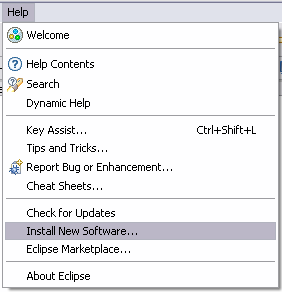
Add sites with links above. Then ...

Select necessary addons and click Next

Next

Finish.

Restarting

Links:
Subversive installation instructions
Open Source Subversion Provider for Eclipse – Subversive
Subscribe to:
Posts (Atom)


